01
Describe your service
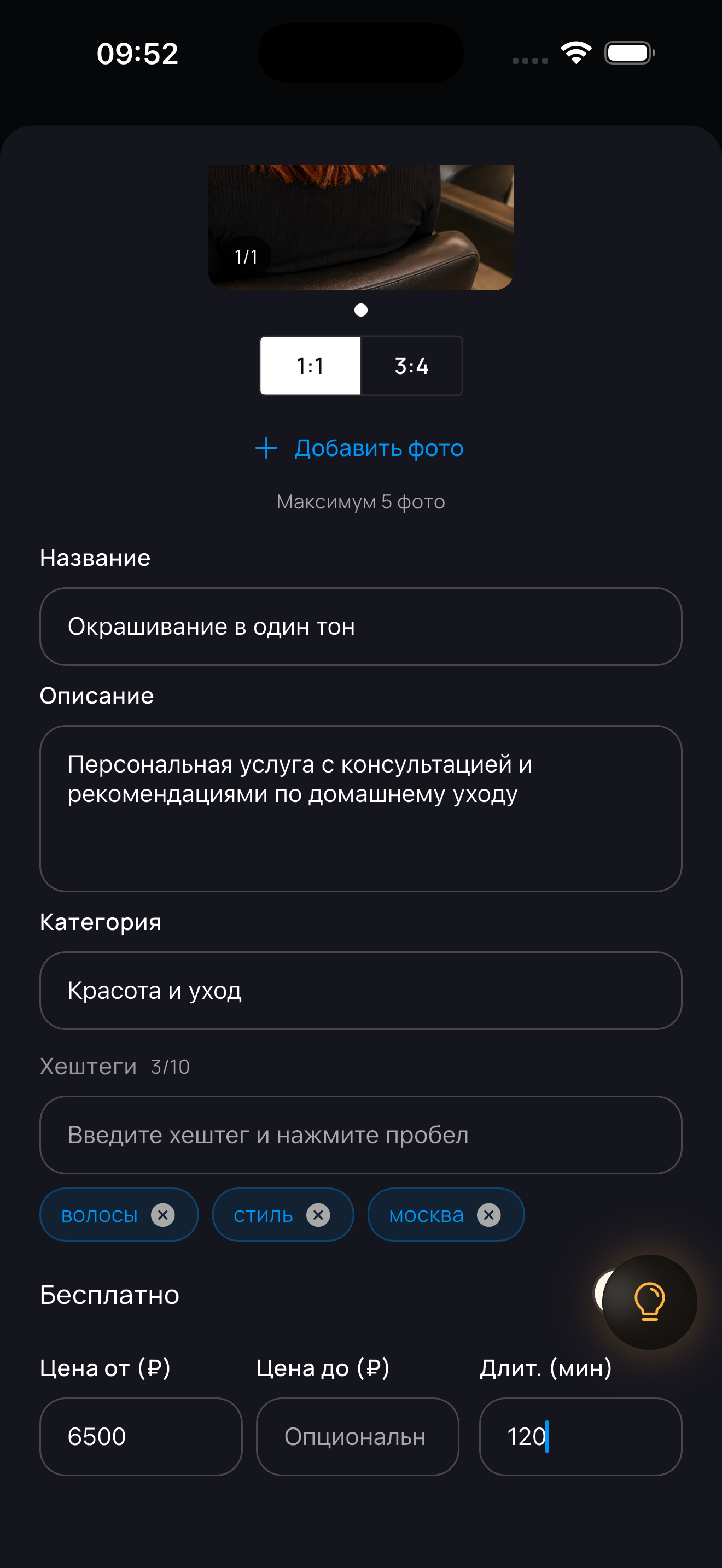
Give every service a name, a price and the time it really needs — from a quick touch-up to complex work. In a specific appointment you can adjust the price and duration for that client.
Booking with control
Clients open your public profile in a browser, tap “Book” and only see suitable times. They do not need to install the app.
Put your public profile link in your social bio. Clients open it in a browser and tap “Book” when online booking is enabled. The screenshots below show settings and client screens in the app; the web booking interface is different.
Give every service a name, a price and the time it really needs — from a quick touch-up to complex work. In a specific appointment you can adjust the price and duration for that client.
In your profile clients see every service with its price and duration — and pick the one they need.
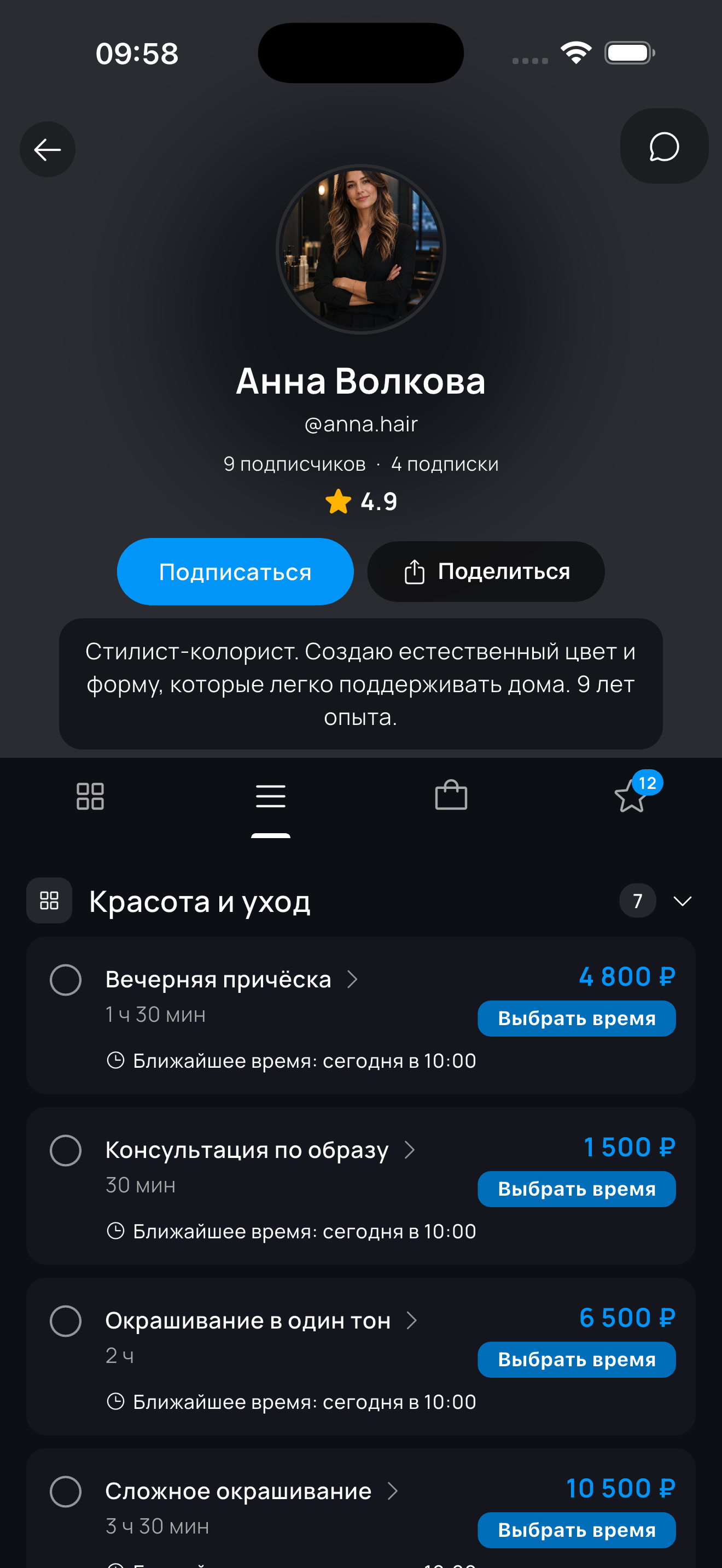
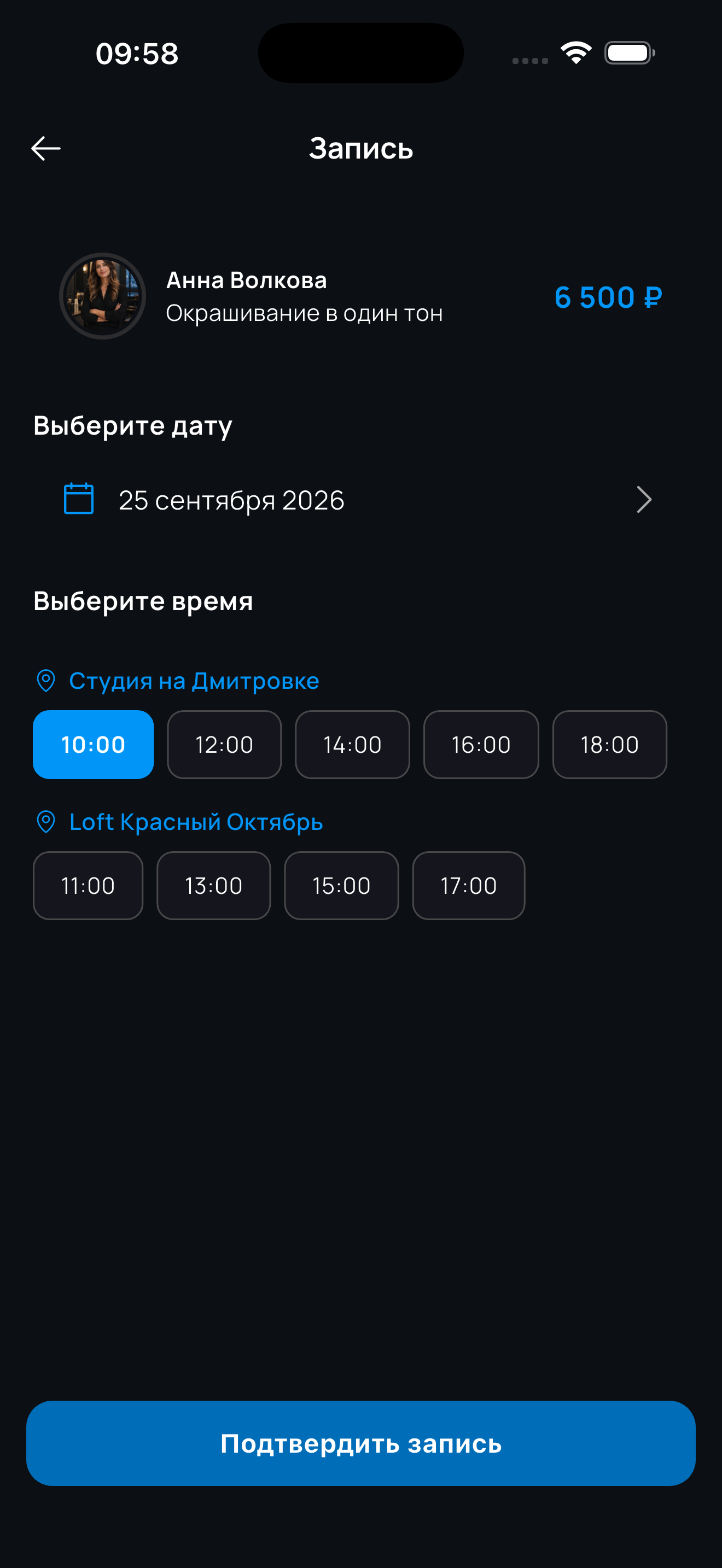
Slots already taken by another appointment are never shown to clients — overlapping online bookings are impossible. Clients see the free slots themselves — based on your schedule and the selected service’s duration — and pick the one that suits them. Share your online booking link any way you like or add it to your social profile: clients can book even without the app.
A link for social media
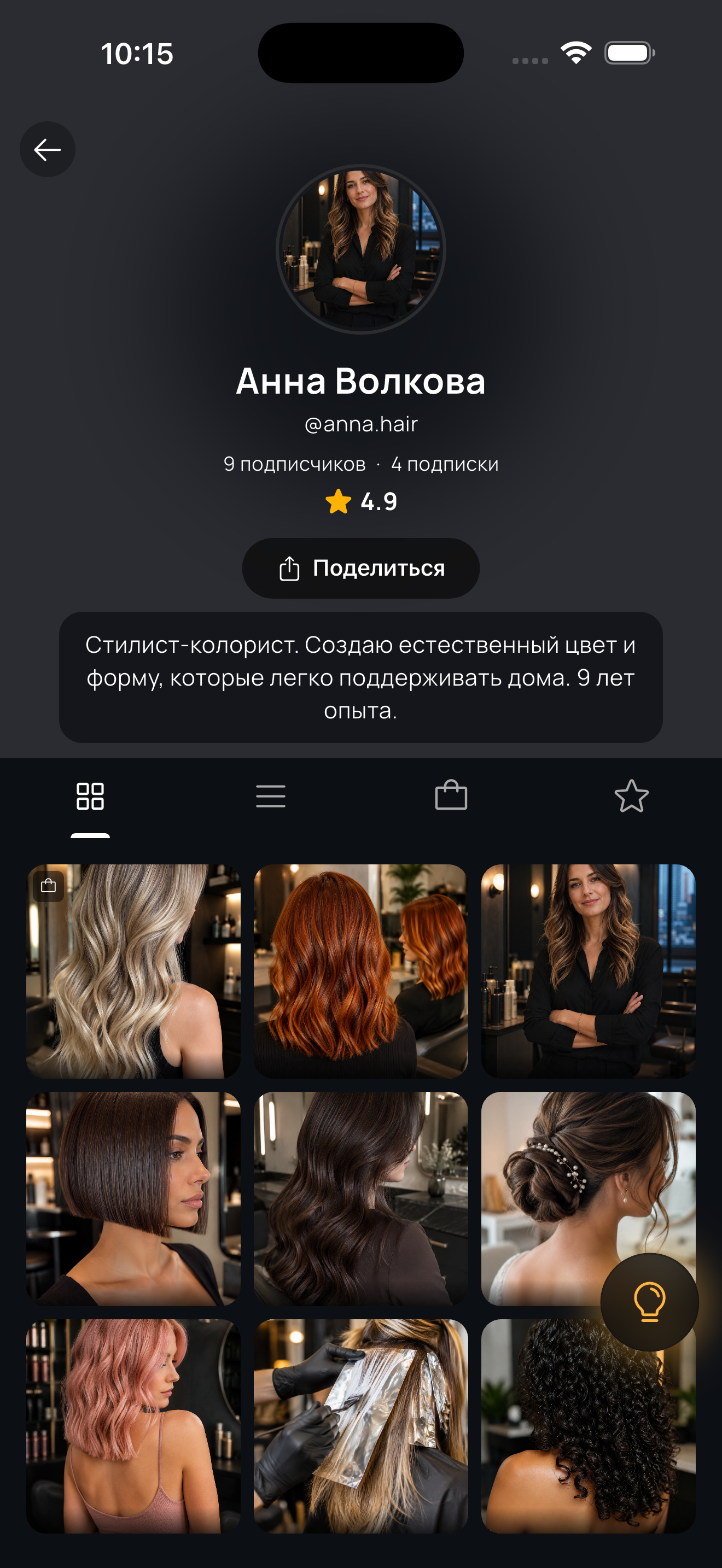
In the app, open profile editing, go to Preview and tap “Share”. The app shares your public web profile link so you can copy it to your social bio or send it to a client.
Open your professional profile in Preview and tap “Share”.
Three booking modes
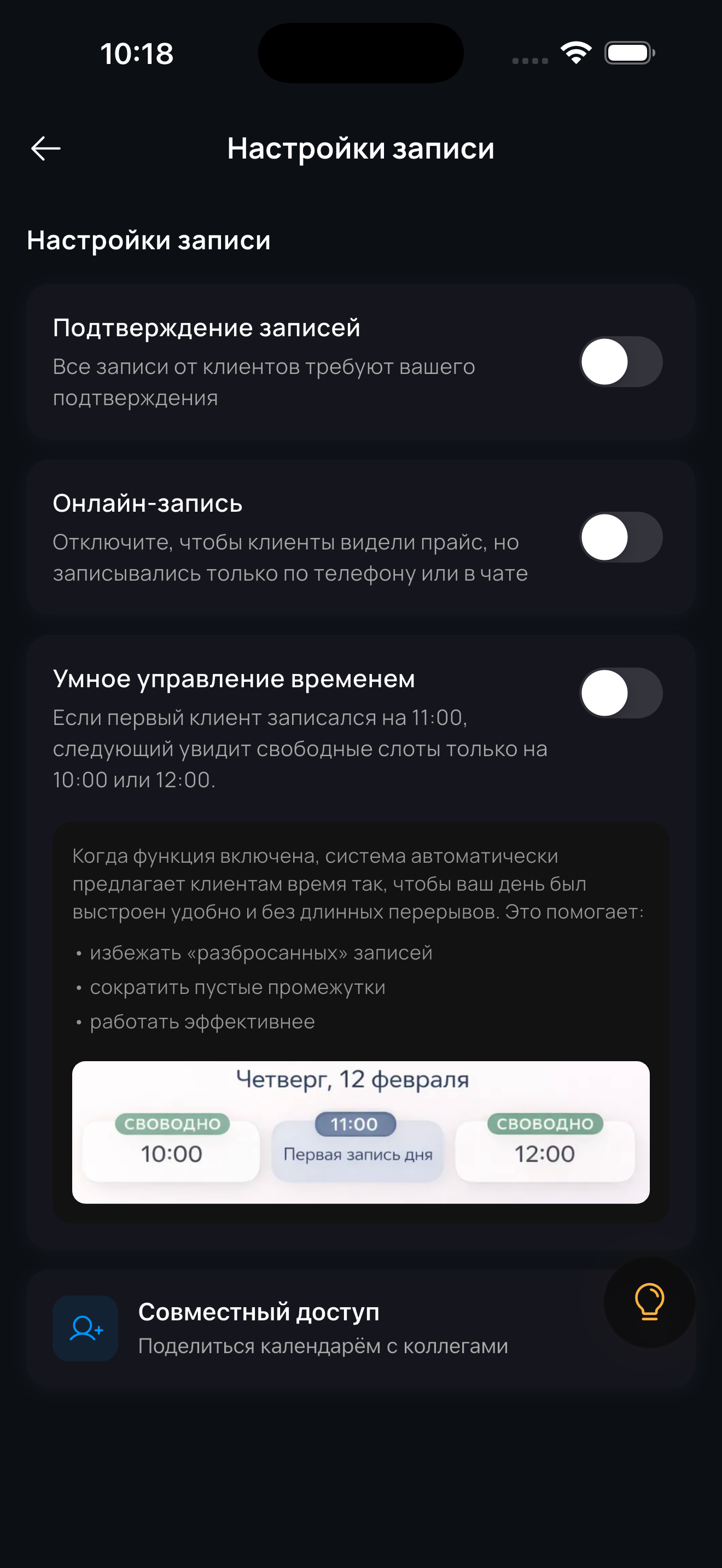
Change the mode in the professional’s booking settings.
Online booking is on and booking approval is off: an available slot goes straight into your calendar.
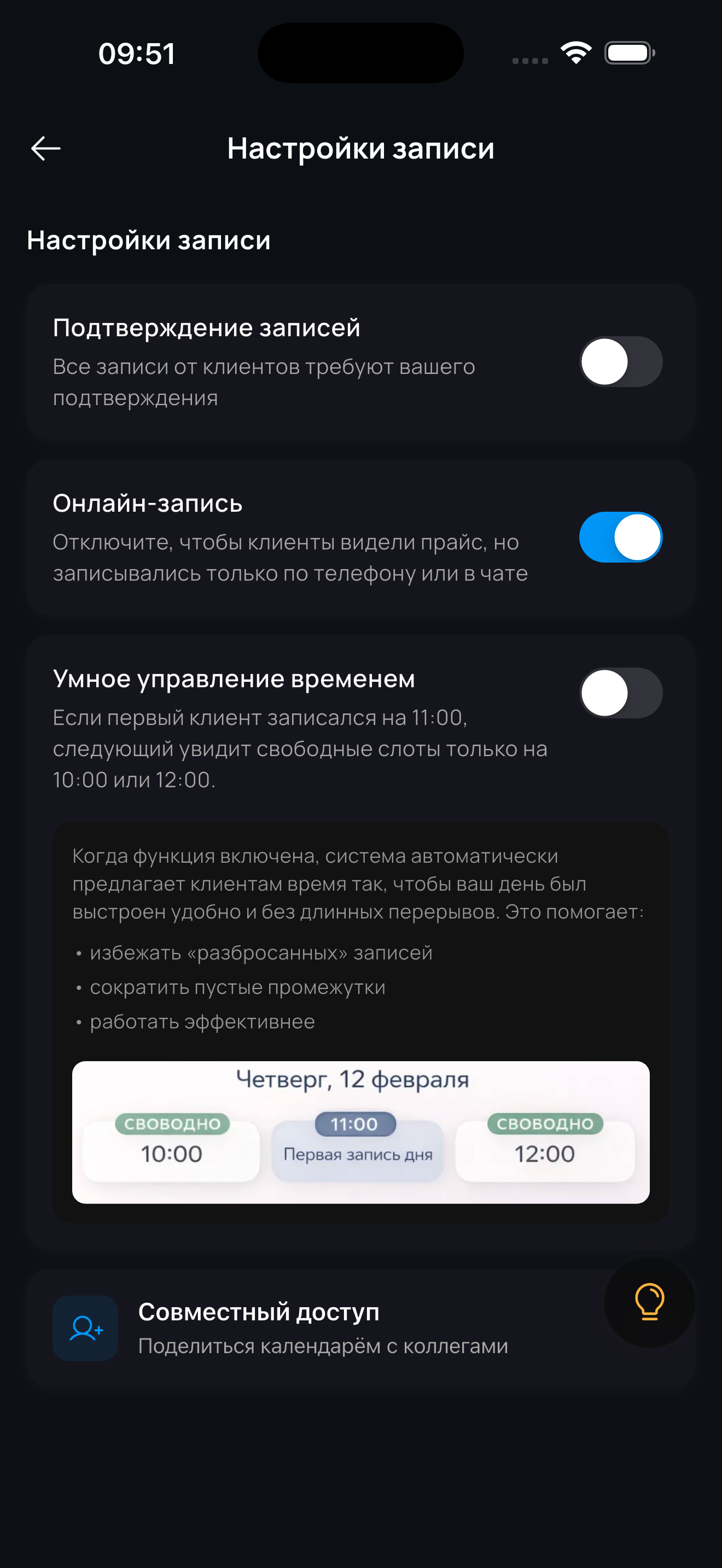
Both settings are on: every new online booking waits for your decision.
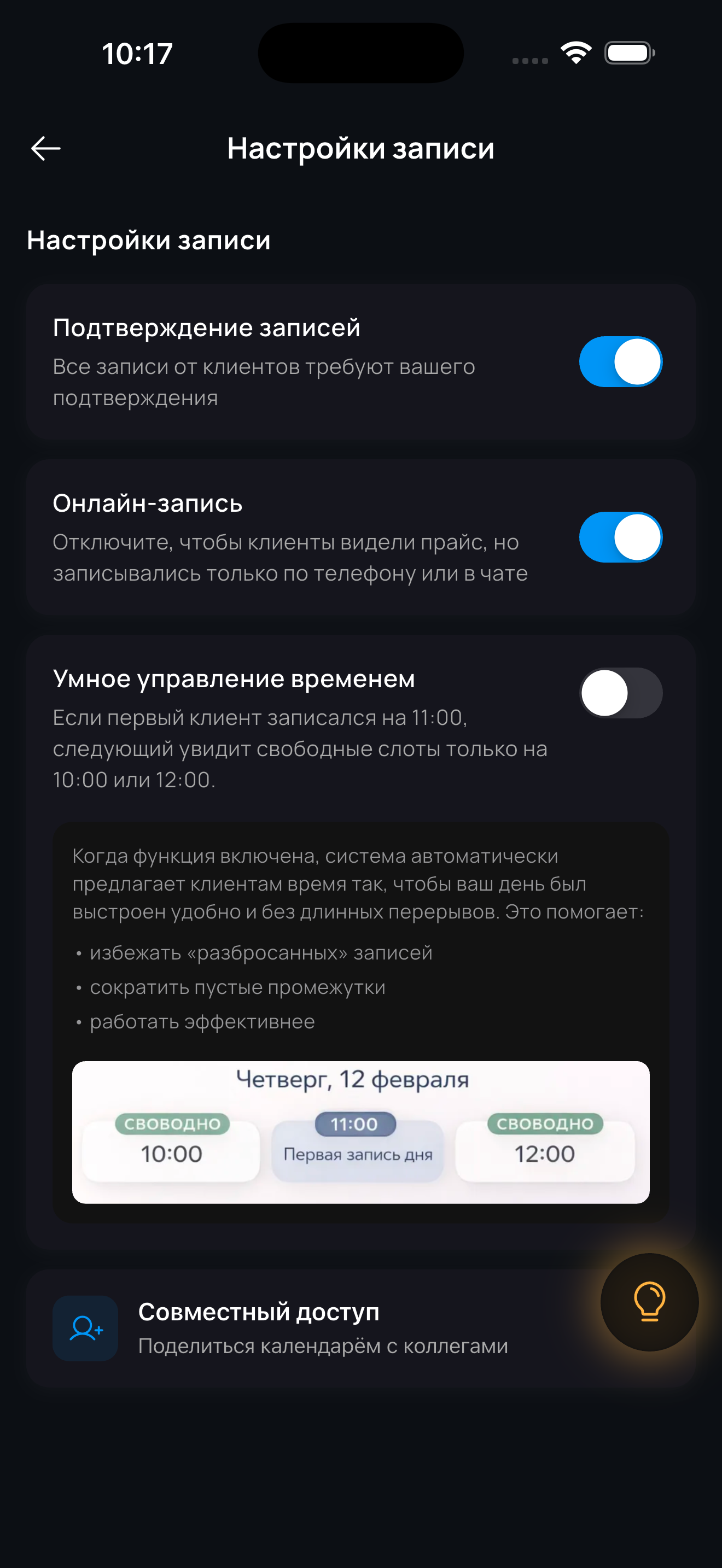
Online booking is off: clients still see your price list and contact you by phone or chat, while you add every booking yourself.
In the app, go to Profile → Edit profile → Preview and tap “Share” → “Copy”. You will get a link to your public web profile — add it to your social bio or send it to a client directly.
To your public web profile. The client opens it in any browser, sees your services with prices and durations, and taps “Book”. Nothing to install — it works on a phone or a computer.
No. The public profile, the service list with prices and the available time selection all open in a regular browser. The app is only for you — to manage your calendar and booking settings.
Yes. In Profile → Settings → Professional settings → Booking settings, turn on both Online booking and Booking approval. Every client request will come to you for approval, and a slot is taken only after you accept it. You can also enable Smart time management, so the system offers clients times that keep your day packed, without scattered slots and long gaps.
Yes — just turn off Online booking in the booking settings. Clients will still see your price list in the web profile and can reach you by phone or chat, while you add appointments to the calendar yourself via Create → New appointment.
No. Once a time is taken, it disappears from the available slots — clients only see free windows, so overlapping online bookings are impossible. Only the master can add an appointment at an already busy time — for example, when agreeing by phone.